You talk. Ducktate writes it down.
Nothing leaves your computer.

Ducktate turns everything you say into clean text and organized notes, right on your computer. Hold a key to dictate into any app. Catch your Slack, Teams, and Meet calls with no bot. Your audio never touches the cloud.

The problem

Your words deserve better than the cloud.

Every other voice app makes you trade privacy for convenience. Here is what that costs you, and how Ducktate fixes it.

“You dictate for five minutes and the server ate it.”

Transcription runs on your computer. No server to go down, nothing to lose.

“A bot barges into your call, or your 'private' notes turn out public.”

No bot joins. Your audio is captured on-device and never leaves it.

“The AI rewrites what you said instead of writing it down.”

Faithful capture, with the raw transcript one click away, always.

“Your notes are trapped in someone's app, behind a per-word bill.”

Plain Markdown you own. Bring your own AI. Dictation free forever.

How it works

Four steps, and two of them are optional.

Ducktate does two jobs with one pipeline: it records the meetings you take and the thoughts you speak, then writes and files the notes for you.

Install and sign in

Download the app, sign in, and pick the folder your notes live in. About two minutes, two permissions.

Take your calls

Ducktate spots Slack, Zoom, Teams, Meet, and Discord calls and asks before it records. No bot joins.

Or just talk

Press ⌘⌥Y in any app and speak. Clean text lands right where your cursor is.

Notes write themselves

Every call and dictation becomes a note with a summary and action items, saved as Markdown you own.

Meeting capture

It knows when you're in a meeting.

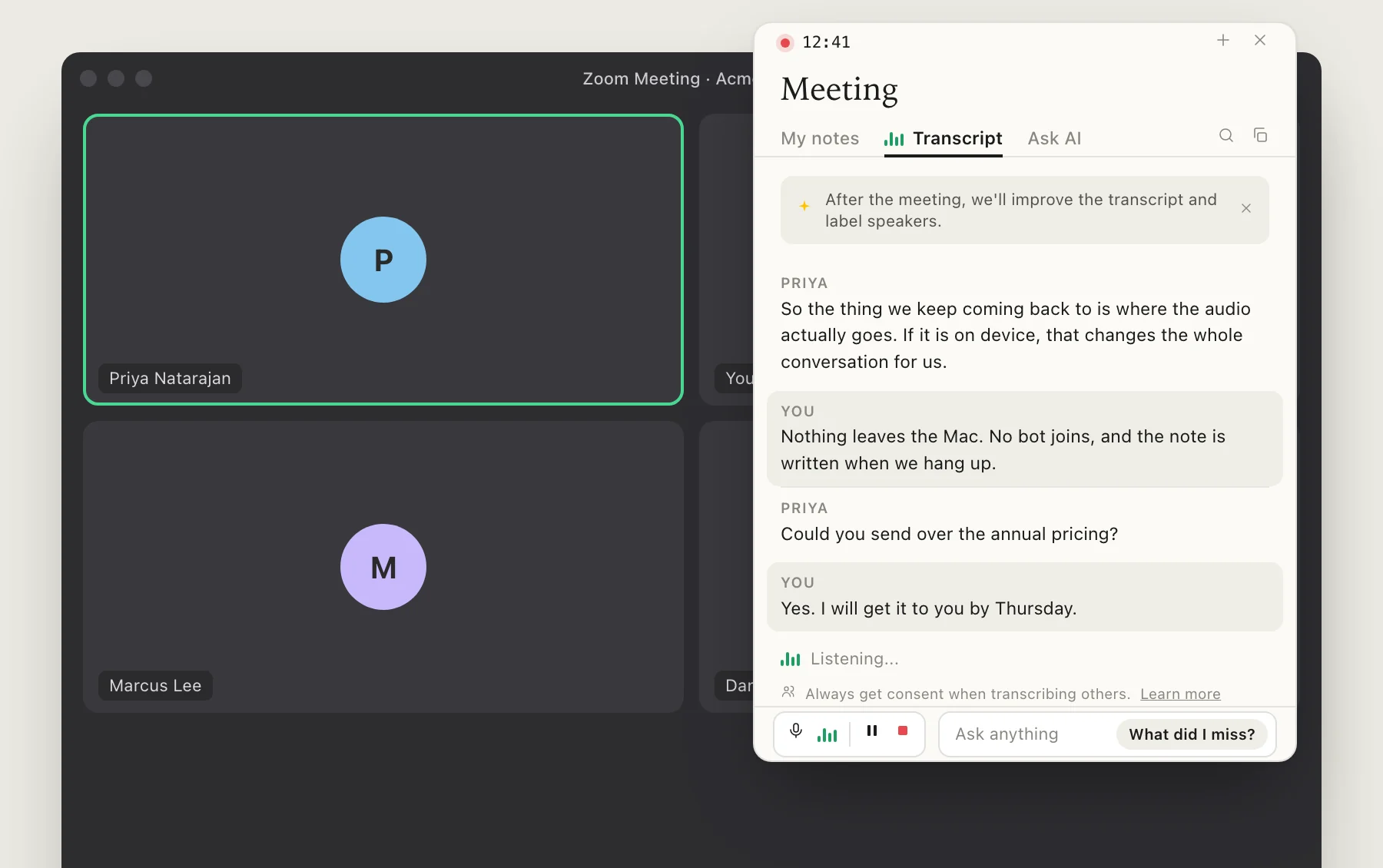
Slack Huddles, Zoom, Microsoft Teams, Google Meet, and Discord. Ducktate notices the call, asks first, then records both sides through your computer's audio system. Nothing joins the meeting.

A Google Meet call with duck participants and the Ducktate recording bar floating below the window
Google Meet Zoom Slack Huddles Microsoft Teams Discord
Asks before recording Both sides captured No bot in the room Audio stays on your computer
Pro Meeting capture needs macOS 14.4 or later
After the call

Every call ends with a note, not a memory.

The moment you hang up, Ducktate writes the note: what happened, what was decided, and who owes what by when. It's filed and searchable before you've closed the window.

  • A summary you'd actually send to someone
  • Decisions pulled out on their own lines
  • Action items as real checkboxes, with dates
  • The full transcript kept underneath
A finished Ducktate meeting note with a summary, decisions, and checkbox action items The Ducktate recording bar showing Recording Google Meet with pause and stop buttons
Dictation

You talk about three times faster than you type.

Press ⌘⌥Y and speak. Ducktate turns it into clean text right where your cursor is: email, docs, code, anywhere. Prefer hold-to-talk instead of toggle? Flip one setting.

  • Works in every app, wherever your cursor is
  • Filler words and false starts cleaned up
  • Thinking out loud? Dictate straight into a note

Take the 60-second speed test

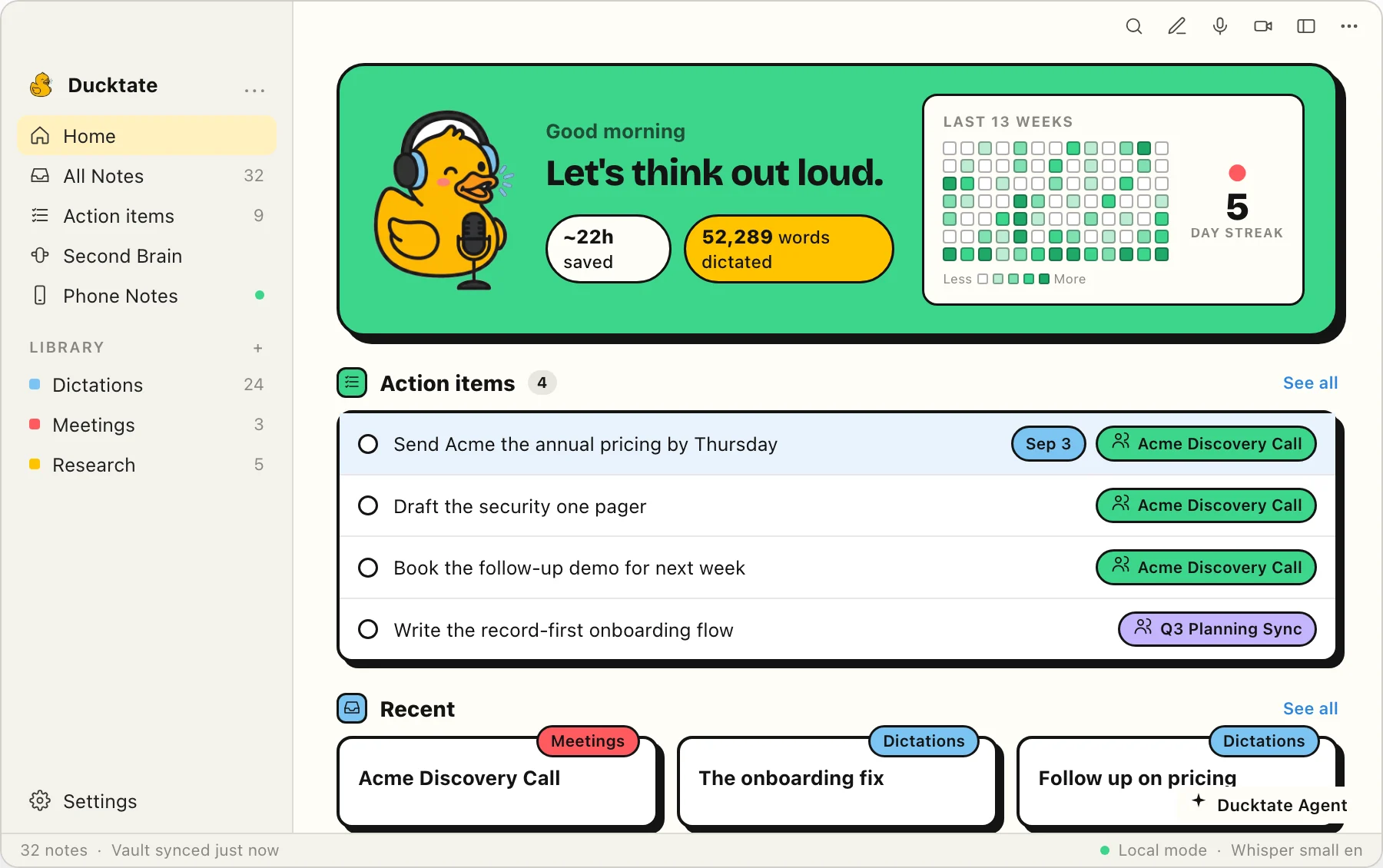
The Ducktate home screen showing words dictated, time saved, reminders, and action items
Your AI, your choice

Pick the brain. Or go without one.

Transcription always runs on your computer, no matter what. AI cleanup, the part that structures your notes, is optional, and you choose exactly where it runs.

Included free

Use the ChatGPT you already pay for

Sign in with your ChatGPT account and it cleans up and structures everything you say. No API keys, no per-word bills, no second AI subscription.

Pro

Or stay 100 percent local

Run a local model with Ollama and the whole pipeline works offline: audio, transcription, and cleanup never leave your computer. Pro also unlocks any model via OpenRouter.

Or turn AI off entirely. You keep clean raw transcripts, and nothing is sent anywhere. There is no vendor you're stuck with, ever.
Your notes

Plain Markdown, in your folder, forever.

Every capture auto-titles and tags itself and lands as a Markdown file in a folder you choose, even an existing Obsidian vault. Full-text search finds anything you ever said.

  • Files on disk you can open with anything
  • Search every word of every note
  • Pro files notes by topic so projects build themselves
  • Pro lets you chat with everything you've captured
Full-text search across every note in the Ducktate library
Why Ducktate

The only one that does all of it.

Every tool below is good at its one slice. Ducktate is the only one that does the whole job, on your computer.

CapabilityDucktateOther apps
Auto-detects your Slack, Zoom, Teams, Meet, and Discord callsYes, on ProWispr Flow, Superwhisper, and MacWhisper do not. Granola needs you to start it.
Captures both sides with no bot joiningYes, via a system audio tapGranola records the call but sends audio to the cloud. Dictation apps do not capture meetings.
Transcription stays on your computerYes, alwaysSuperwhisper and MacWhisper are on-device too. Wispr Flow and Granola transcribe in the cloud.
Pick your AI cleanup engine, or noneYour ChatGPT account, OpenRouter, local, or offWispr Flow and Granola use their own cloud. Superwhisper ties you to its setup.
A Markdown note vault you own, like ObsidianYes, notes auto-title, tag, and file themselvesObsidian owns your Markdown too, but every note is typed by hand. Granola is a cloud notepad.
Notes organize themselves as you talkYes, dictation and AI cleanup build the noteObsidian and other Markdown vaults have no dictation or AI. Dictation apps just paste text with no note library.
Works without a subscriptionYes, free tier and no subscription requiredWispr Flow and Granola are subscription only.

Download to first note in about two minutes.

Install the app and sign in. Point it at the folder your notes should live in. Grant two permissions: microphone so it can hear you, Accessibility so it can paste where you type. Then press ⌘⌥Y and talk, or just take your next call.

macOS 14+ · Meeting capture needs 14.4+ · Built for Apple Silicon

1 Install and sign in
2 Pick your notes folder
3 Allow mic + Accessibility
4 Talk. That's the whole setup.
Pricing

Free to start. Pay when meetings matter.

Dictation and your notes are free because they run on your computer and cost us nothing to host.

Free
$0
Everyday voice notes, free forever.
  • On-device dictation, paste anywhere
  • Push-to-talk in any app
  • All transcription models included
  • AI cleanup with your ChatGPT account
  • Local Markdown notes & full-text search
Get the app
Most popular
Pro
$8.99 /mo · or $89.99/yr
For people who live in meetings.
  • Everything in Free
  • Meeting capture for Slack, Zoom, Teams, Meet & Discord, no bot
  • Summaries, action items & chat with your notes
  • Notes auto-filed by topic
  • Any model via OpenRouter, or fully offline with Ollama
  • 2 months free on yearly
Get early access
Lifetime
$149 once
Founding 200 only. Pay once, yours forever.
Founding edition. Only 200 will ever be sold.
  • Every Pro feature
  • All future updates included
  • No subscription, ever
  • Founder's edition badge
Buy lifetime
Questions

The honest answers.

Does my audio go to the cloud?

No. Transcription runs on your computer and the audio never leaves it. If you turn on AI cleanup, you can keep that local too with a local model.

Does a bot join my meetings?

No. Ducktate records through the your computer's audio system, so it captures both sides without a bot. Nobody in the call sees anything join.

Which meetings can it detect?

Slack Huddles, Zoom, Microsoft Teams, Google Meet in a supported browser (Chrome, Safari, Arc, Brave, or Edge), and Discord. It always asks before recording. Meeting capture needs macOS 14.4 or later.

Do I have to pay for an AI API?

No. AI cleanup is optional and works with the ChatGPT account you already have, with no API key and no per-word bills. Pro adds local models via Ollama and any model via OpenRouter. Or turn AI off and keep raw transcripts.

Where are my notes stored?

As plain Markdown in a folder you choose. No account is needed to read your own notes.

Does it work offline?

Yes for transcription, using the bundled model. Bigger, more accurate models download on demand. Offline AI cleanup uses a local model on your computer, available on Pro.

How long does setup take?

About two minutes. Install the app, sign in, pick the folder your notes live in, and grant two permissions: microphone and Accessibility. Then press the hotkey and talk, or take your next call.

What do I need to run it?

A Mac with Apple Silicon on macOS 14 or later. Meeting capture needs macOS 14.4 or later.

Think out loud.
It writes it down.

Catch every meeting, capture every idea, and keep all of it on your computer.